



You know the frustration. Virtual meetings with muffled audio ruin your calls. The camera misses half the room. The right video conferencing kit fixes these problems. Expensive gear does not mean good quality. Your business needs a video conferencing setup that fits your space. The choice depends on three key things: room size, platform compatibility, and audio performance. This guide helps you check each room and explains hardware types, including all-in-one video conferencing devices. For small businesses, a full system for 2–6 people costs $1,500 to $4,000 per room. A checklist helps you pick conferencing equipment for hybrid meetings without spending too much. Good teamwork starts with the right tools for hybrid video conferencing. It makes every meeting better.
Key Takeaways
-
Measure your room and count seats before buying any video gear.
-
Good audio matters more than a 4K camera for clear meetings.
-
Choose an all-in-one video bar for small rooms and a modular system for large ones.
-
Pick certified equipment that works with your main video platform.
-
Use a checklist to match your budget and needs, and plan for future AI features.
Assess Your Meeting Spaces
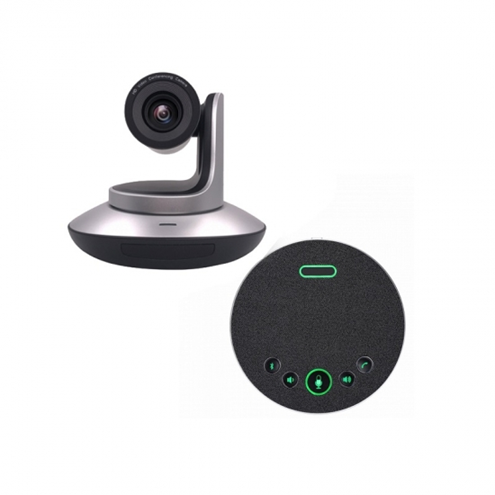
Your room size determines what equipment you need. A video conferencing kit that works in a small huddle room will not work in a large boardroom. You must check your meeting spaces before buying any equipment. This check prevents wasted money and bad meeting experiences. Your business needs tools that match each room's real size.
Identify Room Types and Sizes
Corporate offices usually have three room types. Huddle rooms seat 2–6 people and are about 10' x 10'. Medium conference rooms hold 8–12 people and range from 12' x 13' to 15' x 20'. Boardrooms fit 16–20+ people and span 17' x 20' to 20' x 25' or bigger.
|
Room Type |
Seating Capacity |
Typical Dimensions |
|---|---|---|
|
Huddle Room |
2–6 people |
10' x 10' |
|
Medium Conference Room |
8–12 people |
12' x 13' to 15' x 20' |
|
Boardroom |
16–20+ people |
17' x 20' to 20' x 25' |
Each room type needs different camera features. A 4-person huddle room needs a wide-angle lens to see everyone up close. An all-in-one video conferencing device with a 120° view works well here. A 12-person boardroom needs a pan-tilt-zoom camera. You need optical zoom to focus on people far away. The Logitech Rally Camera offers 15x optical zoom with a 90° horizontal view for medium to large rooms. The AVer CAM540 provides 12x zoom with an 86° horizontal view. These options work for rooms up to 30 feet deep.
Calculate Participant Capacity
Your number of participants decides camera placement and framing. For rooms with up to 6 people, place the camera 4–6 feet from the closest person. Center the group so faces stay clear. For rooms with 7 or more people, put the camera 8–12 feet away. You need optical zoom to fit the whole group on screen.
When more people join, the camera sits farther from the last person. A wide-angle lens alone will show everyone but make distant faces too small to see well. So, for medium and large rooms (7+ people), the camera must have both a wide view for full coverage and zoom power to focus on people sitting farther back.
Audio coverage matters just as much. For larger rooms, your microphone must pick up sound from all directions. This catches voices from anywhere in the space. Industry standards require this for good hybrid meetings.
Think about a video conferencing system with high optical zoom and 4K resolution for large boardrooms. This system gives sharp detail across long distances. Small businesses often pick simpler setups. A single video conferencing kit with good audio and a fixed wide-angle camera works for most huddle rooms. This choice supports daily teamwork without high costs.
Your room check builds the base for every other choice. Measure each space. Count the seats. Match your conferencing equipment to the actual room size. This process keeps your meetings running well.
Evaluate Video Conferencing Equipment Specs
Prioritize Audio Over Video
You might want a 4K camera first. But bad audio ruins a meeting faster than a blurry picture. The numbers prove this point. A recent survey found that 87% of users have at least one audio problem. Each worker loses 29 minutes of work time per week. A 100-person company loses over £30,000 each year. These numbers show why audio should come first.
Your microphone must handle real office noise. Look for good microphones with noise cancellation and echo suppression. These features block out keyboard clicks, HVAC hum, and background chatter. Beamforming technology helps too. Advanced models track active speakers and focus on their voice. This works well in hybrid rooms where some people join from far away.
A 2025 Yale University study found that bad audio can make the speaker seem less smart, no matter what they say. Research from Japan also showed that poor audio quality causes real physical stress through cognitive dissonance, which builds up over time.
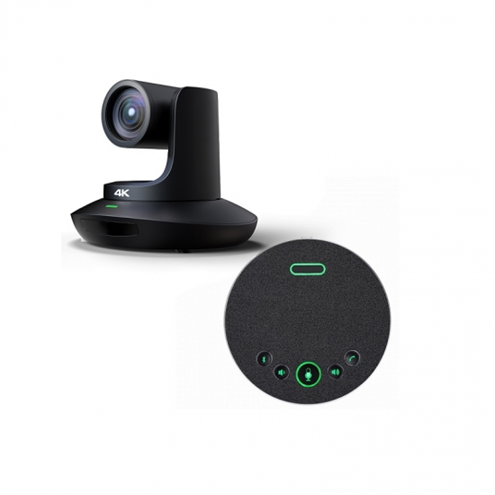
For bigger rooms, think about a video conferencing system with high optical zoom and 4K resolution. The camera quality matters, but only after you fix the audio problem.
Look for Platform Certification
Your video conferencing equipment must work with your main platform. Whether you use Zoom, Microsoft Teams, or Webex, certification ensures plug-and-play function. Certified hardware gives you native in-app controls. You can start or join meetings without using a separate remote.
|
Aspect |
Certified Hardware |
Non-Certified Hardware |
|---|---|---|
|
Platform Controls |
Native in-app controls |
Limited or no in-app controls |
|
Updates |
Automatic firmware updates |
Manual or unsupported updates |
|
Management |
Remote management tools |
No central diagnostics |
|
Reliability |
Stable, tested integrations |
Higher risk of bugs or disconnects |
Certification also unlocks advanced features like AI framing. The camera adjusts on its own to keep everyone in view. This improves teamwork without extra work from you. For small businesses, certified conferencing equipment cuts IT workload. Your team spends less time fixing equipment problems and more time on useful meetings.
Choose certified video conferencing equipment that works with your calendar and collaboration tools. This choice ensures reliable audio and high quality video meetings every time. Your business gets consistency across every room and every call.
Compare Video Conferencing Systems
After checking the specs, you must pick between two kinds of video collaboration systems. Each one fits different room sizes and budgets. Picking wrong wastes money and hurts meeting quality. Your choice depends on room size, how many people join, and how much flexibility you need.
All-in-One Video Bars for Huddle Rooms
An all-in-one video conferencing device works best for small to medium rooms. These rooms seat 2 to 6 people. The bar has a camera, microphone, and speaker in one unit. You plug it into your laptop with one cable. This easy setup takes only minutes.
These bars give small businesses great value. You skip complex wiring and AV know-how. The all-in-one design means fewer parts to break. Most bars come with wide-angle lenses. Audio pickup covers most huddle rooms. These bars also block background noise and echoes. You get clear sound without extra microphones. The single cable connects right to your laptop for fast daily use.
Look at devices like the Logitech Rally Bar. Some have optical zoom. But mechanical pan-tilt-zoom is weaker than in dedicated cameras. For up to 6 people, the fixed wide lens works fine.
A video conferencing kit with an all-in-one bar costs less than modular options. You get steady quality without buying separate parts. The downside is limited customization. You cannot upgrade the camera later. For regular daily meetings and team talks, this simplicity offers high value. Many teams pick this route for their video collaboration systems. This approach works well as a video conferencing kit for huddle rooms. The all-in-one bar supports good collaboration in these spaces.
Modular Systems for Large Conference Rooms
Modular setups fix problems that all-in-one bars cannot handle. Large spaces need sound spread across the room. You split the camera, microphone, and speaker into separate parts. This flexibility covers bigger areas.
For 12-person boardrooms, the built-in microphone of a video bar cannot reach far enough. You need dedicated tabletop or ceiling microphones. Beamforming arrays with multiple microphones can provide sufficient pickup for large rooms. Ceiling microphones keep tables clean.
Cameras need mechanical pan-tilt-zoom with optical zoom. Cameras with high optical zoom, such as the Logitech Rally Camera with 15x zoom, provide clear distant views. This lets you see distant people clearly. Multiple cameras with speaker tracking become needed for large rooms.
Audio processing needs separate hardware. Digital Signal Processors handle echo cancellation and mic coordination. A dedicated mini-PC can manage complex multi-device setups and multi-display 4K installations.
Dual large displays are common in boardrooms. Pre-vetted bundles are available from some vendors. These bundles give reliable gear. They make sure parts work together. The right conferencing equipment produces clear audio across the room. Windows-based Teams Rooms often need modular PC-based setups. Choosing a modular setup gives you access to more advanced features.
A modular video conferencing system costs more upfront. But it can grow as your needs grow. You can add microphones or cameras later. For odd-shaped rooms, distributed speakers and mics ensure even sound coverage. Each part in this system works together smoothly. Every participant hears clearly.
These video collaboration setups deliver excellent hybrid experiences. Modular options give you more control for each room. You can set up spaces based on shape and size. The upfront cost pays off through better experiences.
Your choice between these options depends on your rooms. Measure carefully. Count your participants. Pick the option that fits your business today and works tomorrow.
Integration and IT Management
Your video conferencing gear must work with your current tools. If a system does not get along with your calendar or phone, it causes problems. Every worker loses time. Your business needs equipment that connects without trouble.
Ensure Compatibility with Your Stack
Your chosen gear must support standard ways to connect. Modern laptops use USB-C or HDMI ports. Your video conferencing kit should accept both. This flexibility lets anyone join a meeting with their own device.
Your system must also handle standard VoIP phone calls. This support matters for hybrid meetings where some people call in by phone. Your video conference software should work with these protocols. An all-in-one video conferencing device often includes these standards. Check the specs before buying. A high-quality video conferencing system usually supports these connections too.
Consider Centralized Device Management
Bigger businesses face a larger challenge. Many rooms in several offices need oversight. Your IT team cannot visit every room for every problem. Remote management tools fix this issue.
A single cloud dashboard gives your team control. They can check device health from anywhere. They can push firmware updates to every room at once. They can apply security policies evenly. This approach cuts travel time and fixes problems before users notice.
Key features to look for are:
-
Remote setup and checking reduce the need for on-site help.
-
Firmware updates and policy rules apply evenly across all devices.
-
Dashboards and alerts let IT teams find and fix problems early.
-
Central cloud management lets you watch, update, and fix from one place.
Some vendors provide kits that work with a single cloud dashboard. This setup cuts IT work a lot. Your team handles more rooms with less effort. Small businesses also gain from simpler management options. Even one or two rooms need easy troubleshooting.
Your conferencing gear should not make extra work. Choose equipment that fits with your tools. Pick systems that let you manage from afar. This approach keeps your video collaboration systems running well. Your meetings stay productive. Your team stays focused on working together, not on tech problems.
Use a Quick Decision Checklist
You have looked over your rooms and compared gear. Now you need a clear plan. A checklist helps you avoid costly errors. It keeps your choices close to what you really need. Go through these four items before you buy anything.
-
Room dimensions: Measure how long and wide each space is. Write down the numbers. A 10' x 10' huddle room needs different gear than a 20' x 25' boardroom.
-
Number of seats: Count the most people who can sit in each room. This number tells you what camera zoom and microphone range you need.
-
Primary platform: Know which platform your team uses every day. Whether it is Zoom, Microsoft Teams, or Webex, your video conferencing kit must be certified for that platform.
-
Budget range: Set a real spending limit for each room. Include setup, wiring, and ongoing support costs in your total.
This checklist is quick to complete. It stops you from buying the wrong all-in-one video conferencing device or too large a modular system. Your business deserves gear that fits your real space.
Budgeting for Quality and Scalability
Your budget must balance good quality with space to grow. A business growing from 10 to 50 workers faces different needs at each step. The cost ranges below show what you can expect per room.
A company with 10 workers might fit in one medium room. Plan for more rooms as your team grows. The system's ability to grow depends on picking gear that can expand without full replacement.
Think about total cost of ownership, not just the price tag. Using one vendor can lower total cost compared to using many vendors. Extra licenses, setup work, and separate repairs all add hidden costs. Training staff and setup time can add to the initial price.
For cost savings, think about monthly plans that spread costs over your budget cycle. These monthly plans spread costs over your budget cycle. They also include updates and support.
Future-Proofing with AI Features
AI features now shape what people buy. The market has moved from separate hardware to connected, cloud-based systems. Buyers now look at long-term software integration and device management along with physical specs. Competition now moves past hardware to cloud management and workflow automation.
Ask yourself which AI features you need now. Speaker tracking keeps the active talker in the center of the screen. Auto framing adjusts the camera view when people enter or leave. Background noise removal takes away distracting sounds. These features improve video meetings right away.
Some AI features come through software updates. A high-quality video conferencing system may support future upgrades without new hardware. Other features need built-in processing power. Check if your chosen system can add features later or if you must buy them now.
Live transcription and auto summaries help remote team members catch up after missing sessions. Multilingual translation breaks down language barriers across global offices. These tools turn your conferencing equipment into a teamwork hub, not just a camera and microphone.
Your checklist should include one last question. Do you need advanced AI now, or can you add it later? Choose a system that allows both paths. This flexibility protects your investment and keeps your meetings productive for years.
Your decision path is clear. First, measure your room dimensions and count seats. Conferencing equipment for small spaces needs a wide-angle lens. Large rooms need optical zoom. Second, check microphone quality. Poor audio destroys your meeting. Choose equipment with strong noise cancellation.
Third, pick the form factor. An all-in-one video conferencing device suits small rooms. Large spaces need a modular system or a video conferencing system with high optical zoom and 4K resolution.
The right video conferencing kit works with your calendar and collaboration tools. This video conferencing solution supports seamless meetings. Complex? Consider pre-certified bundles from vendors. A pre-certified video conferencing kit simplifies your choice.
Download a guide. Contact a specialist. Assess your business needs today.
FAQ
How Much Should I Budget for a Small Meeting Room?
A huddle room for 2-6 people costs $1,500 to $4,000. An all-in-one video conferencing device fits this space well. You avoid extra wiring costs. Your total includes the camera, microphone, speaker, and mounting hardware. Plan for setup time too.
Can I Use a Consumer Webcam Instead of Professional Gear?
Consumer webcams lack the microphone range and noise cancellation your meetings need. They also miss platform certification. Your remote participants hear echoes and background noise. Professional conferencing equipment delivers reliable audio and video quality. The extra cost pays off through fewer meeting disruptions.
Do I Need IT Staff to Manage My Video System?
Small businesses with one or two rooms can manage simple setups without dedicated IT help. An all-in-one video conferencing device connects with a single cable. Larger offices benefit from cloud dashboards. These tools let existing staff monitor devices remotely without special training.
How Often Should I Upgrade My Video Conferencing Kit?
Most systems last for several years. Software updates add new AI features during that time. You upgrade when your platform drops support or your room layout changes. A high-quality video conferencing system offers room to grow. This guide helps you match upgrades to real business needs.
What AI Features Matter Most for Hybrid Teams?
Speaker tracking and auto framing keep remote viewers engaged. Background noise removal stops distracting sounds. Live transcription helps absent team members catch up. These tools support better collaboration across offices. Choose a system that adds these features through software updates rather than requiring new hardware purchases.



 +8613725587481
 sales@winsafecctv.com